
Four keys get you almost everywhere.
KROMA behaves like a physical phone: move, choose, go back, repeat.
Move
Step through menus, lists, colours and scale values.
Select
Open a menu item, confirm a choice, save or start.
Back
Return one screen, cancel a preview, or pause a game.
Shortcuts
Open root-menu items quickly and control pocket games.
From the Home screen, press Menu or the left soft key. Use ↑/↓ and OK from there. Hold C for about one second to return Home from most screens.
On ANIMALS, use the right soft key when the screen shows Back or Pause. On a two-way rocker, use 2/4/6/8 for precise four-way game control. GAMZAG also maps W/A/S/D/X to Up, Left, OK, Right and Down.
Change the whole phone in under a minute.
Choose the phone you want to use, then make it your own.
- 1
Hold the # key
Hold # for two seconds to open Your phone.
- 2
Choose a model and colour
Browse the phones and tap a colour. Let the preview load to see the design.
- 3
Tap OK
Apply your selected look. New designs may need to download the first time you use them. Cancel leaves your current phone unchanged.
You can also change the model and colour under Menu → Settings → Phone settings. For a design made with your own photos, follow Customize & gift.
How to connect with a friend.
KROMA calls and messages travel over the Internet. Both people need KROMA and a connection.
- 1
Find your number
Open Contacts → My number and finish setup. Share your 10-digit KROMA number with your friend, including the leading zero.
- 2
Add your friend
In Contacts, open Options → Add Contact. Save their name and KROMA number.
- 3
Call or write
Open the contact and choose Call or Message. During a call, # switches Speaker on or off; the red End key hangs up.
Open KROMA and set up My number, too. Answer the incoming call, or open Messages → Inbox to read your message. Allow notifications to receive alerts.
Messages → Chat brings your conversations together. Open Call register for missed, received and dialled calls. Your KROMA number is for KROMA friends, not ordinary mobile or emergency calls.
Plans & monthly allowances
| Plan | Messages | Call minutes | Voice messages |
|---|---|---|---|
| Free | 200 | 30 | 20 |
| Plus | 3,000 | 300 | 200 |
| Premium | 10,000 | 1,000 | 1,000 |
| Ultra | Unlimited | Unlimited | Unlimited |
Each sent text, photo or video uses one message. Voice messages have a separate allowance, with up to 30 seconds per clip. Only answered outgoing call time counts, with up to two hours per call. Receiving messages and calls uses no allowance. A call counts towards the UTC month in which it is answered.
Allowances reset at 00:00 UTC on the first day of each month. Unused allowances do not roll over. Ultra has no monthly limit; the clip and individual-call limits still apply. Open Plans in KROMA for current App Store prices.
To prevent spam, all plans allow up to 30 sends and five call attempts per minute. Free also has daily safety limits of 500 send attempts and 60 call attempts; paid plans have no daily allowance cap.
Air is free, Original requires Plus or above, and Sport requires Premium or above. Premium and Ultra include all handset models and custom bases. Saved designs and gifts have the same base requirement; receiving a gift does not include a subscription.
Saved custom phones: Free lets you keep 1, Plus 10, Premium 100 and Ultra 1,000 of your own designs in Custom at one time, across all bases. Received Gifts do not count. This is a saved-design limit, not a monthly allowance. How the custom limit works.
A paid Connect allowance belongs to one KROMA number. Restore that same number before restoring or syncing purchases on another iPhone. A new number does not inherit the allowance. Older purchases link to the first number that successfully syncs them. Keep your number before changing phones.
How to send a little voice note.
A radio-style recording, up to 30 seconds. Listen before you send.
- 1
Record
Open Messages → Voice Messages. Choose Record and allow microphone access if asked.
- 2
Listen
Choose Stop, then Listen. Use Record again if you want another take.
- 3
Send
Choose Choose recipient, enter a KROMA number or select a contact, then confirm. Your friend opens the message to listen.
How to keep a pixel memory.
Photos and videos, with a little retro character.
Take photo
Open Camera → Take photo, choose a camera and allow access. Wait for the live view, then press Shoot.
Make a video
Open Camera → Make a video, choose a camera, start recording and stop when you are done.
Allow Photos access to save your captures. After a successful save, KROMA flashes Saved to iPhone Photos, then shows Delete and Back.
Open Camera → Photos for photo and video thumbnails. Open a video and choose Play. To send a picture to a friend, start in Messages → Picture Messages.
How to make a phone for someone.
Your photos. Their new favourite phone.
- 1
Open Customize
Hold # for two seconds. In Your phone, tap Customize and choose a base: Air is free, Original requires Plus or above, and Sport requires Premium or above. The same base requirement applies to saved designs and gifts.
- 2
Add your photos
Choose a photo for the front and back, then adjust each crop. The screen, keys and fixed details stay in place.
- 3
Save or gift
Choose Save & Use to wear your design, or Save & Gift. Name it, then choose Send via KROMA or AirDrop or share on the Gift a phone screen.
Keep up to 1 custom phone with Free, 10 with Plus, 100 with Premium or 1,000 with Ultra. This counts your own saved designs across all bases; received Gifts are excluded. The limit does not reset each month. If you already have more than your plan allows, your designs stay saved. You can still edit or delete them, subject to their base requirement. To add another custom phone, make room or upgrade.
Open the gift in KROMA. Preview the phone, choose a design name and tap Accept gift or Decline gift. Accepted designs appear in Your phone → Gifts.
A phone gift is an editable copy. Your original stays in Custom, and your friend can rename or edit their copy. You can also gift a saved design from its gift button in Custom.
How to welcome a small friend.
Set up My number first, then open Pet from the main menu.
- 1
Adopt and name
Choose Adopt in your Barn. Pick a species and give your pet a name.
- 2
Spend a little time
Open your pet’s Options to Feed, Play, Sleep or Clean. Needs shows how it is doing.
- 3
Send a pet as a gift
Choose Gift and a KROMA friend. The receiving iPhone opens Pet → Gifts and chooses Accept or Decline. A pet marked Gift pending is reserved until the gift is resolved.
How to come back to the same number.
Set up recovery before deleting KROMA or changing iPhones.
- 1
Open Keep my number
Go to Contacts → My number → Options → Keep my number.
- 2
Choose a recovery method
Use Sign in with Apple, or choose Recovery code and keep the code somewhere safe and private.
- 3
Restore when you need to
Choose Restore my number and use the same Apple account or your saved recovery code. Recovery restores your number; do not rely on it as a backup of locally saved messages and media.
Make the handset fit your hand and screen.
KROMA offers eight exact sizes, from 80% to 150% in 10% steps.
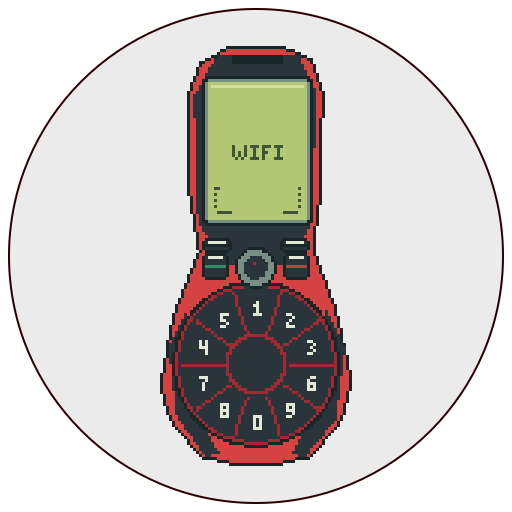
INTERACTIVE PREVIEW
- 1
Open Scale
Go to Settings → Phone settings → Scale.
- 2
Preview a size
Choose 80%–150% with ↑/↓, then press OK. KROMA temporarily shows that size.
- 3
Save before the countdown ends
When Save? (3) appears, press OK to keep it. Press C or let the countdown finish to return to the previous size.
Pick a game. The keypad becomes the controller.
Open the main menu and choose Games. Choose a title and press OK.
direction pad
action / select
pause / back
01Coastal BlocksSEA-CREATURE CLUSTERS
Guide sea creatures through a quiet underwater puzzle. Complete rows. 2, 5 or OK rotates, 4/6 move, and 8/Down drops the cluster straight to the bottom.
02Bounce HollowHAUNTED BALL PLATFORMER
Roll through 11 haunted factory routes. Hold 4/Left and 6/Right to steer, then press 2/Up, 5 or OK to jump. Releasing a direction stops steering, while 8/Down is not a brake. Collect every spirit ring to unseal the exit; Back or C pauses and saves.
03Bubble QuayBUBBLE MATCH
Aim with 4/Left and 6/Right, then press 5 or OK to fire. Match three or more bubbles of one color and drop any cluster no longer connected to the ceiling. Clear all 40 authored missions; C pauses.
04Comic WingsFIVE-WORLD SHOOTER
Fly through five worlds while your ship fires automatically. Hold the direction keys or 2/4/6/8 to steer. Press 3 or # to cycle three weapon families, and OK, 5, 1 or * for a special attack when ready. Collect upgrades and extra lives, avoid enemy bullets and defeat each world’s boss. Back or C pauses and saves; Continue resumes your checkpoint. Set one to five lives before a new game.
05Thicket RunPIXEL SPIRE RUNNER
Choose RUN or CONTINUE to enter the three-lane pixel track. Press 4/Left and 6/Right to dodge, and 2/Up, 5 or OK to jump over barriers. Collect coins, shield pickups and speed boosts as the run gets faster. Back or C pauses; choose RESUME to continue or EXIT to leave the saved run. A revive charge can bring you back after a hit.
06Dunk DriftPRO-BASKETBALL FLIGHT
Press any number key, direction key or OK to flap a magical basketball upward. Thread it between the hoop rigs in a packed fictional arena; every rig you pass adds one point.
07Signal CrossPIXEL SIGNAL COURIER
Cross 15 routes on a pixel grid that fills the LCD. Press 2/Up, 5 or OK to advance; 4/Left and 6/Right sidestep, and 8/Down retreats no farther than the latest relay. A tap also advances; swipe to move in that direction. Dodge traffic, watch pulse rails, ride conveyor belts and cross through open phase gates. Three charges protect the courier, and relay rows restore one. Back or C pauses and saves.
08Hoop Cadence60-SECOND SHOOTOUT
Set the arc with 2/8. Hold 5 or OK while the power marker moves, then release to shoot.
09Hedgehog LaneENDLESS CROSSING
Move with 2/4/6/8 or the direction keys. Cross traffic, ride moving logs over water and collect apples through five authored levels; later rounds loop with higher speeds. 5, OK or C pauses.
10Coil RacingPIXEL GRAND PRIX
Race six rivals over three laps on a retro pixel circuit. Choose Rookie, Pro or Legend. Press 5 for the lights, then hold 2/Up to launch and accelerate. 8/Down brakes and 4/6 steer. Hold 5 or OK to deploy ERS, press # to select the next tyre, and 0 to call or cancel a pit stop. C pauses.
11Pine RollNATIONAL PARK DESCENT
Descend through Pine Roll National Park from one safe timber ledge to the next. ←/↑/2/4 moves left; →/↓/6/8 moves right. Collect first-aid kits for extra lives. Avoid jagged rock ledges and the top and bottom of the trail. 5, OK or C pauses.
12Snake HollowHALLOWEEN CEMETERIES
Guide a bone serpent through three haunted cemeteries. Steer with 2/4/6/8 or the direction keys; the serpent cannot reverse. Collect 25 pumpkins to open each of the first two cemeteries; the third continues endlessly. Spirit lanterns add a life, and ghost potions shorten the trail and award a bonus. Avoid tombstones and your own trail. 5, OK or C pauses. The square-cell board adapts to the LCD; changing its size restarts the current maze while keeping your score and lives.
13Reef ImpactUNDERSEA BUBBLE PATROL
Pilot a tiny submarine through a reef channel. Move with 2/Up, 4/Left, 6/Right and 8/Down; the first input starts the dive. Press 5 or OK to fire bubble pulses at jellyfish, rays and armored pufferfish before they reach the left boundary. Pufferfish take two hits. Protect all three hull seals; the dark reef outside the outlined channel is scenery. C pauses.
Use the controls above for each game. Some titles include an Instructions item; Thicket Run opens directly onto its run screen. C pauses or goes back, and Continue appears where saved runs are supported.
Open Games → Settings to switch Game sounds, Game lights and Shakes on or off independently.
A few keys worth remembering.
Use the on-screen soft-key labels for the current action.
- #
- Hold two seconds to change your phone
- C
- Back; hold to return Home from most screens
- #
- During a call: switch Speaker
- OK
- Select the highlighted menu item
Switch off, start again or restore the defaults.
The phone keeps these controls deliberately familiar.
Switch off
From Home, press Power, choose Switch off!, then press OK.
Switch on
Hold Power for about one second, then let the boot and welcome screens finish.
- 1
Open restore
Go to Settings → Restore factory settings, or dial *#7780# from Home.
- 2
Enter the security code
The default is 12345. Press C to delete one digit, or hold it to clear the field.
- 3
Confirm
Press OK. This restores phone settings to their defaults; it does not erase contacts, photos, reminders, drafts, game saves or high scores.
Small fixes for common snags.
My number setup says Please wait.
KROMA shows a local retry time when number setup is busy. Leave it until that time; repeatedly reopening the app will not speed it up. If you already have a number, use Restore my number.
I do not see my capture in iPhone Photos.
Check KROMA’s Photos permission in iPhone Settings. In KROMA, open Camera → Photos to check the local gallery. The saved notice confirms when saving to iPhone Photos succeeds.
A friend cannot receive my call or message.
Check that both iPhones have Internet access and KROMA set up. Use the friend’s full 10-digit KROMA number, including its leading zero. Check notification permission if alerts do not arrive.
The phone looks too large or too small.
Return to Settings → Phone settings → Scale. Pick another size, press OK, then press OK again during the three-second save prompt.
The colour changed after I picked a new model.
This is expected: each model opens in its own default colour. Choose Color after changing the model.
A game just opened but the keys do not respond.
Wait for the intro to finish—up to about three seconds. If the phone has a two-way rocker, use 2/4/6/8 for four-direction control.
The game screen is dark or silent.
Open Games → Settings and turn on Game lights or Game sounds. Keypad tones live separately under Tones → Keypad tones.
I changed my mind during scale preview.
Press C, or simply wait for the three-second countdown. KROMA restores the previously saved size.